
Setup Epic Haiku or Epic Canto
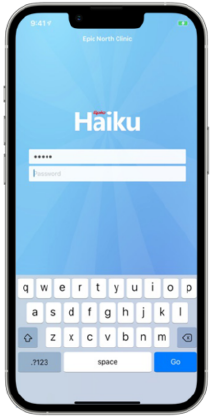
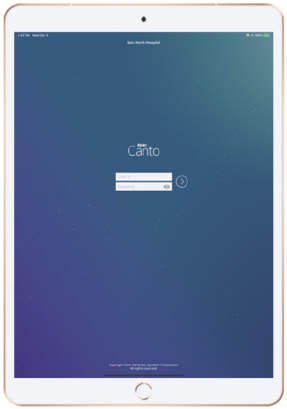
Haiku is EpicCare’s mobile app for the iPhone® and Android®. Canto is the mobile app for the iPad®. These two apps give COPC practitioners secure and portable access to patient charts.
Whether you are in the hallways of your practice or rounding at the hospital, accessing your patients’ information is easy and convenient.

Instructions
Please follow the installation in the following order.
Download App
1. Download The Epic Authenticator
1. Search in the App Store on your phone (not available on iPad) for “Epic Authenticator”
2. Next to the Epic Authenticator app in the search results, tap get and then tap install.

2. Download the app
Download the app you would like to use that is designated for your type of device from your app store. Click on the desired link below. Once installed, click the link that corresponds with the application being configured. Haiku for mobile phones, Canto for iPads.
Note: To avoid an issue with Epic mobile apps crashing please update to the latest version Android: Users must update their Haiku app to version 10.3.2 or later once released. iPhone: Users must update their iOS mobile devices to version 15.0 or later.



3. Two-Factor Authentication – Enrollment
After Iinstalling Epic Authenticator and The Haiku or Canto Application:
1. Log into Hyperspace on your laptop.
2. Click the Epic button in the top left corner to search.
3. Type “Two Factor Authentication Enrollment” into the search bar.

4. Enter your password (the same one you use to log into your computer) and then click accept.
5. Follow the Welcome instructions within the Two-Factor Authentication – Enrollment activity on your laptop.
A.Use the Epic Authenticator app that you previously downloaded.
B. All other instructions can be found within the enrollment activity.
6. Before continuing – make sure you log out of the epic authenticator app and back into the authenticator. This will allow the app to configure after setup.
7. Verify you have allowed notifications from the Epic Authenticator app.
Configure
4. Tap the link to configure Haiku or Canto
The configuration link will only work if you have already installed the appropriate application on your mobile device. Please make sure that the application has fully downloaded on your device of choice before clicking on the configure link for Haiku or Canto.
Apple iPhone / iPad Users:
Tap the link to configure Haiku or Canto Use Safari for iOS:
Link to Haiku:
- You will then be prompted “Do you want to open this with Haiku?” tap “yes”.
- You are now setup – you can Log in to Epic Haiku/Canto Mobile Application with your COPC Credentials
Link to Canto:
- You will then be prompted “Do you want to open this with Canto?” tap “yes”.
- You are now setup.
Android Users:
Link to Haiku:
- You will then be prompted “Do you want to open this with Haiku?” tap “yes”.
- You are now setup.
5. Accept the License Agreement
Once the application has been installed on your mobile device and the configuration link has been successfully accessed, you will be asked to accept the license agreement inside the Epic app before you can start using it.
Note: To avoid an issue with Epic mobile apps crashing please update to the latest version Android: Users must update their Haiku app to version 10.3.2 or later once released. iPhone: Users must update their iOS mobile devices to version 15.0 or later.
6. Sign in using your COPC credentials
You can Log in to Epic Haiku/Canto Mobile Application with your COPC credentials.